01.1 Section
Download the Nusuk app
Nusuk (نُسُك) is the Saudi government’s official Hajj and Umrah platform, published by the Ministry of Hajj and Umrah. In 2026 a digital permit booked here is required to perform Umrah at Masjid al-Haram in Makkah and to enter the Rawdah in Masjid an-Nabawi, Madinah — and both permits are free. Install it only from an official store and check the publisher before you tap install.
Avoid scamsLook-alike apps and unofficial “fixers” charge money for permits that are free. The genuine Nusuk app never charges for an Umrah or Rawdah permit — if someone asks for a permit fee, walk away.
TipAfter installing, open the app once and allow notifications and location. Notifications drive the Rawdah confirmation reminder; location powers “Go to the Haram” directions and Instant Track.
01.2 Section
Register your account
As an international pilgrim you’ll sign up with email, verify it, then complete your profile with your passport and visa (or border) number.
-
1
Open the app and tap “Login Or Register”
On the welcome screen tap Login Or Register. You can “Continue as Guest” to look around, but you can’t book a permit without a verified account.
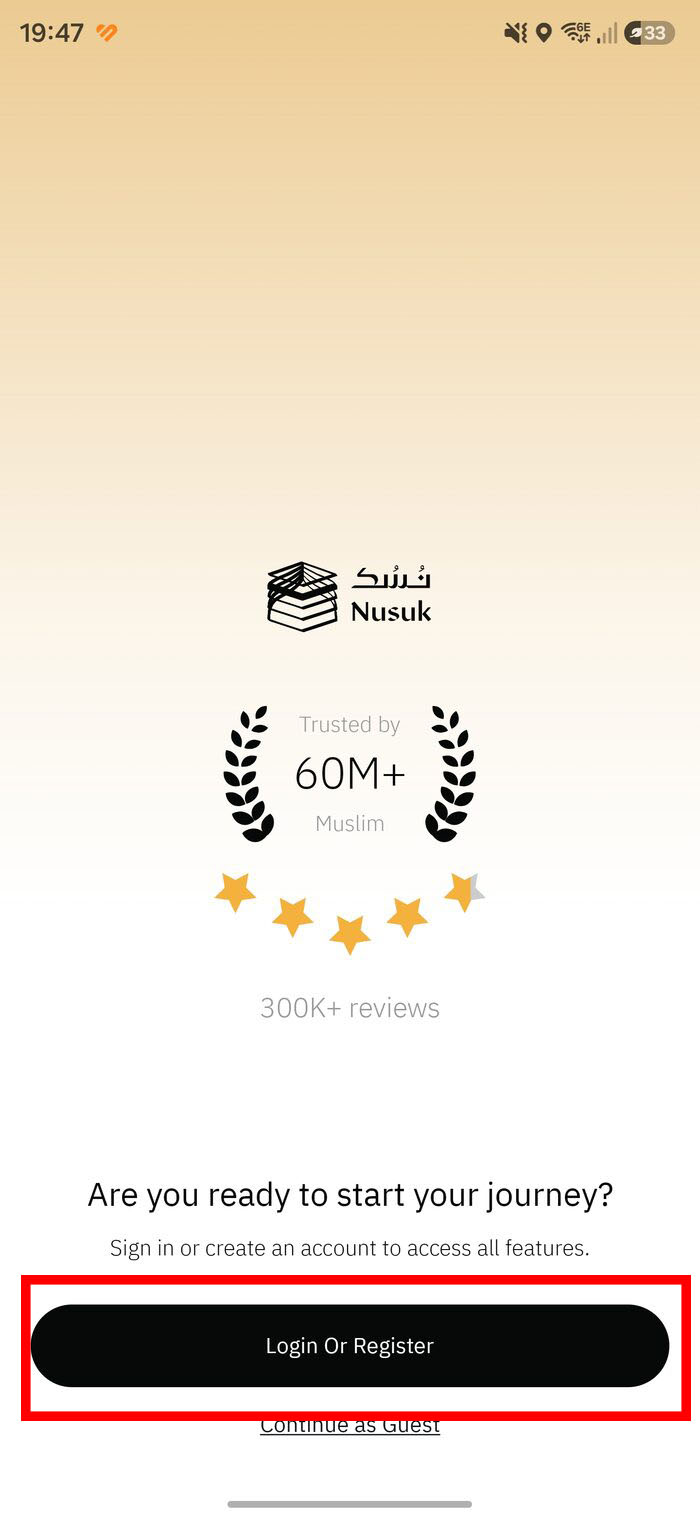
Welcome → Login Or Register -
2
Choose “Register New Account”
On the “Log In to Continue” sheet, tap Register New Account.
- Login with Email — use this later, once your account exists.
- Login with Nafath — Saudi citizens and residents only; international visitors should not use it.
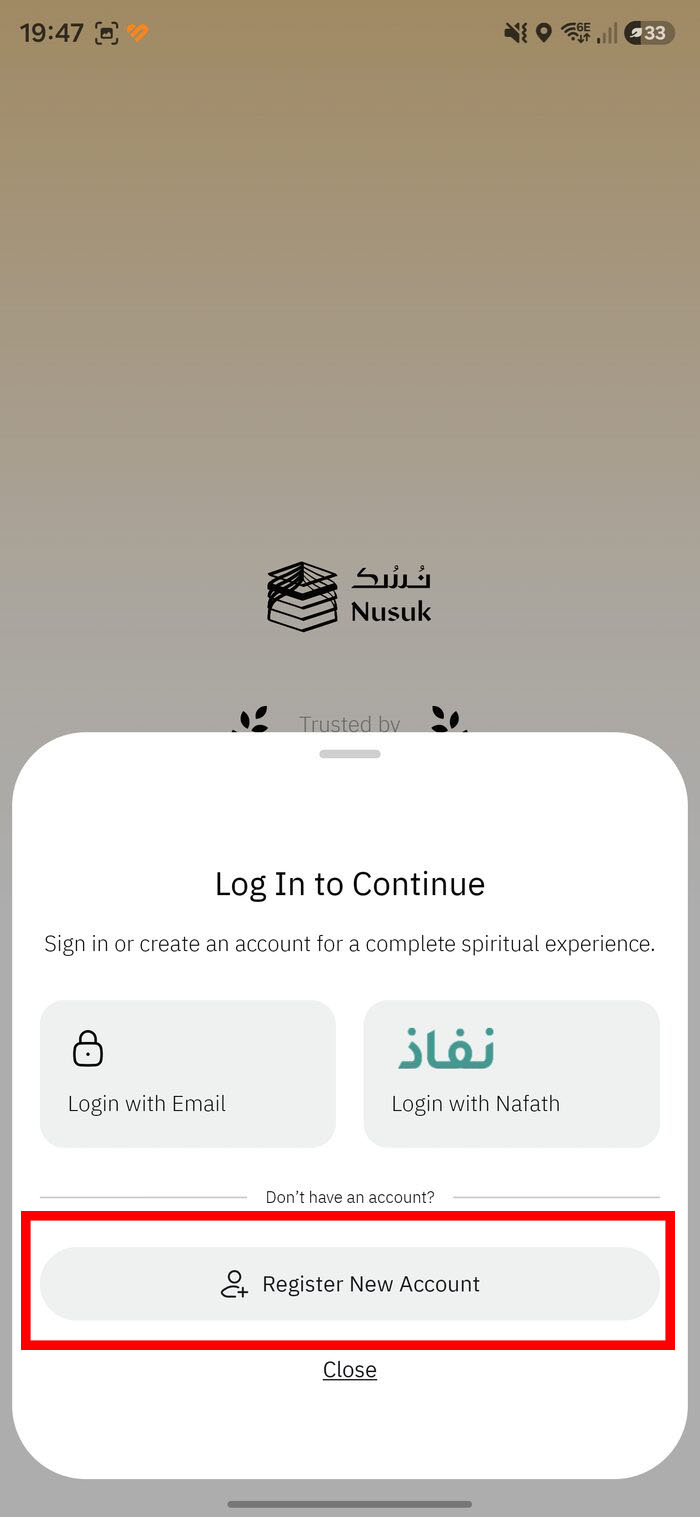
Tap “Register New Account” -
3
Enter your name, email and password
Use your real name exactly as on your travel documents, and an email you can open right now. Tick the Terms & Conditions and Privacy Policy.
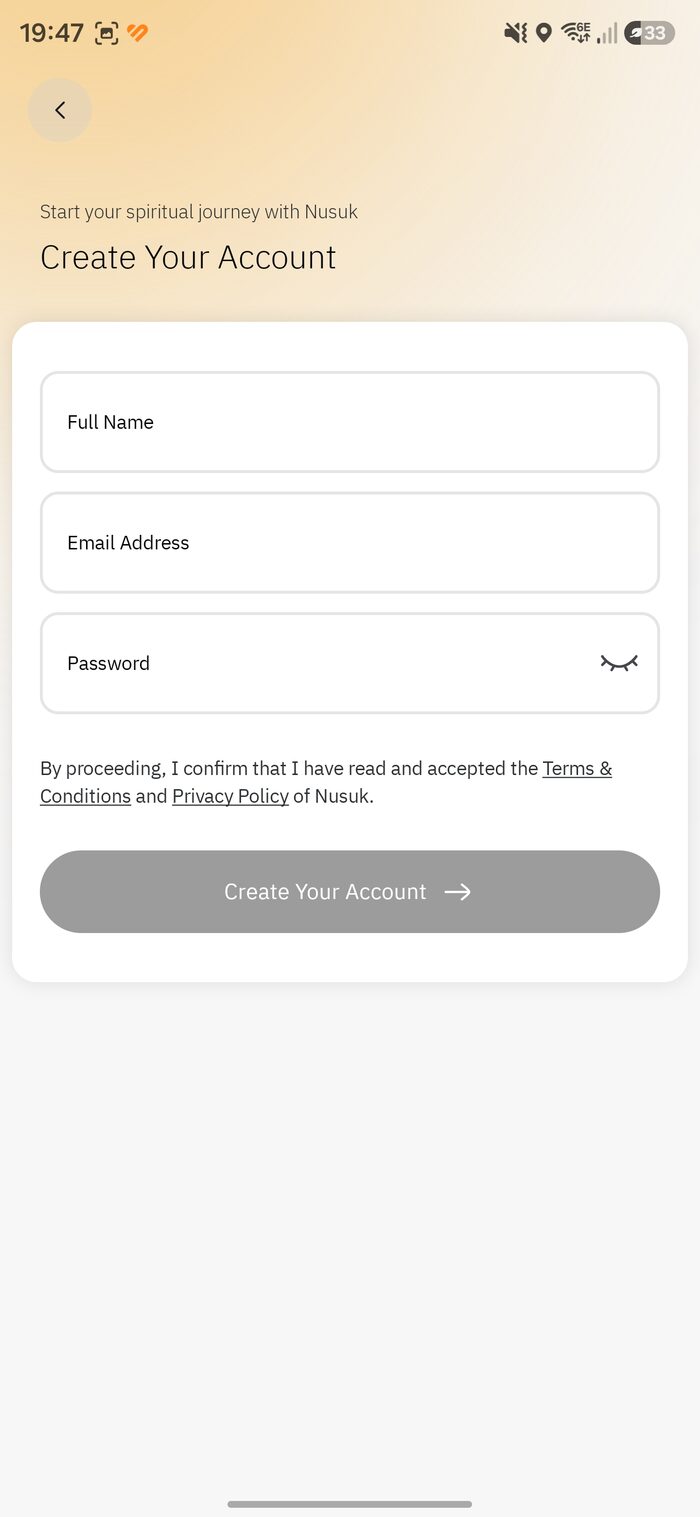
Create Your Account -
4
Meet the password rules
Each rule turns into a green tick: at least 8 characters, one lowercase, one uppercase, one number, and one symbol with no space. When all five pass, Create Your Account activates.
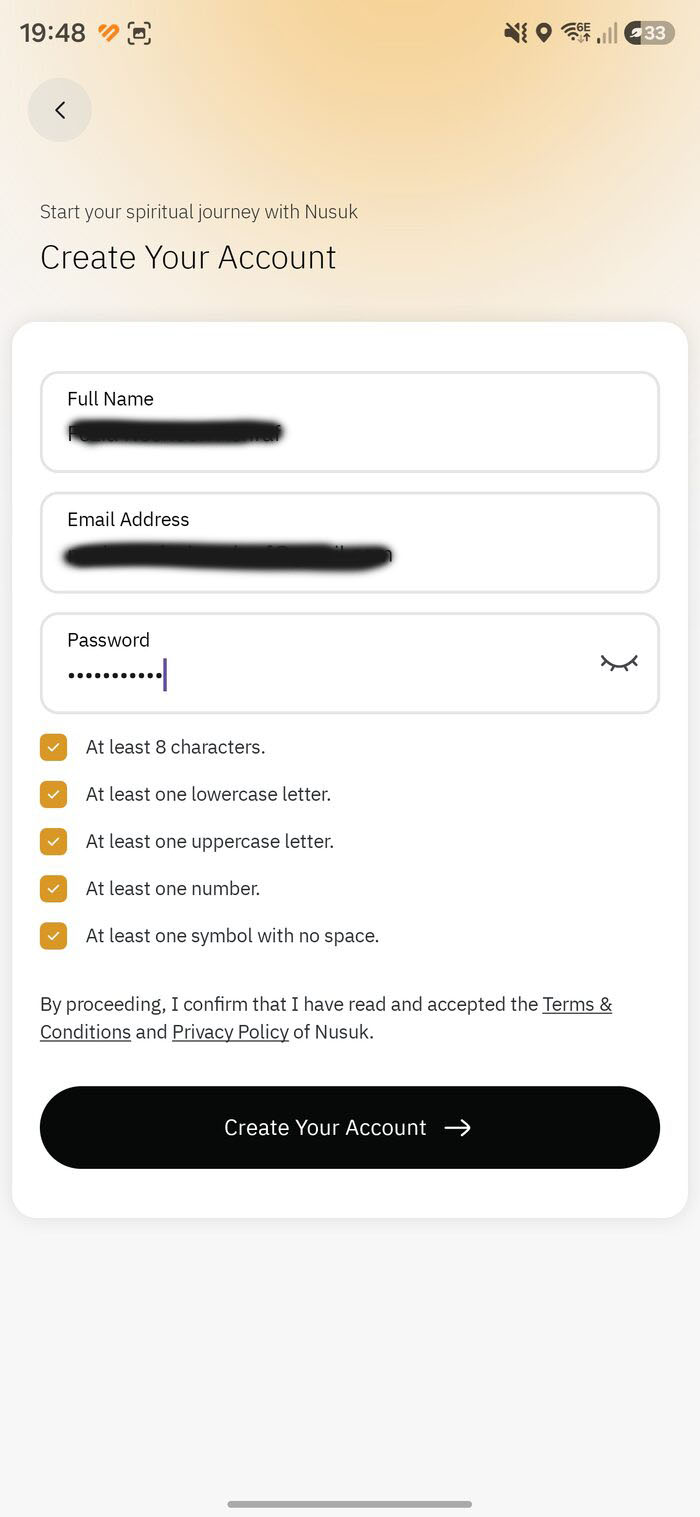
All five rules met -
5
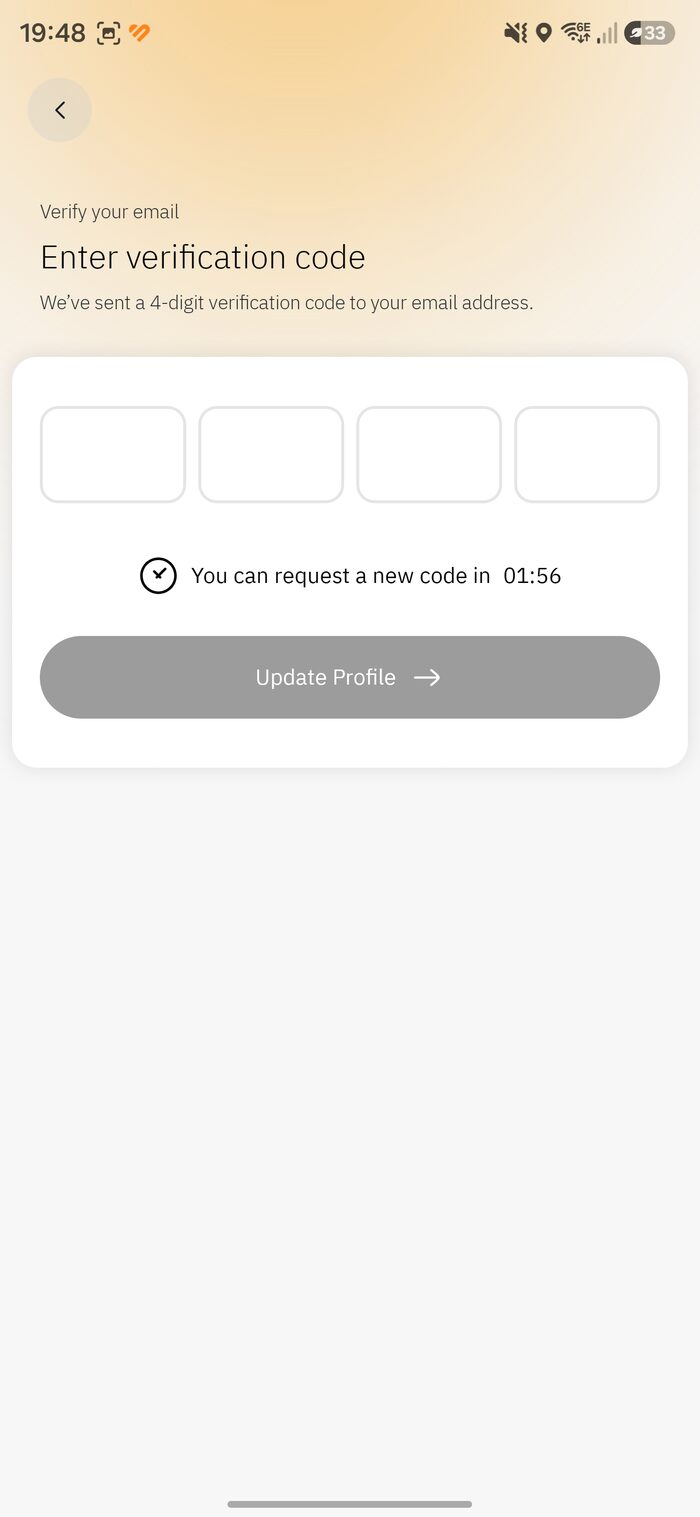
Verify your email
Nusuk emails a 4-digit code. Enter it (check spam if it’s slow), then tap Update Profile.
Enter the emailed code -
6
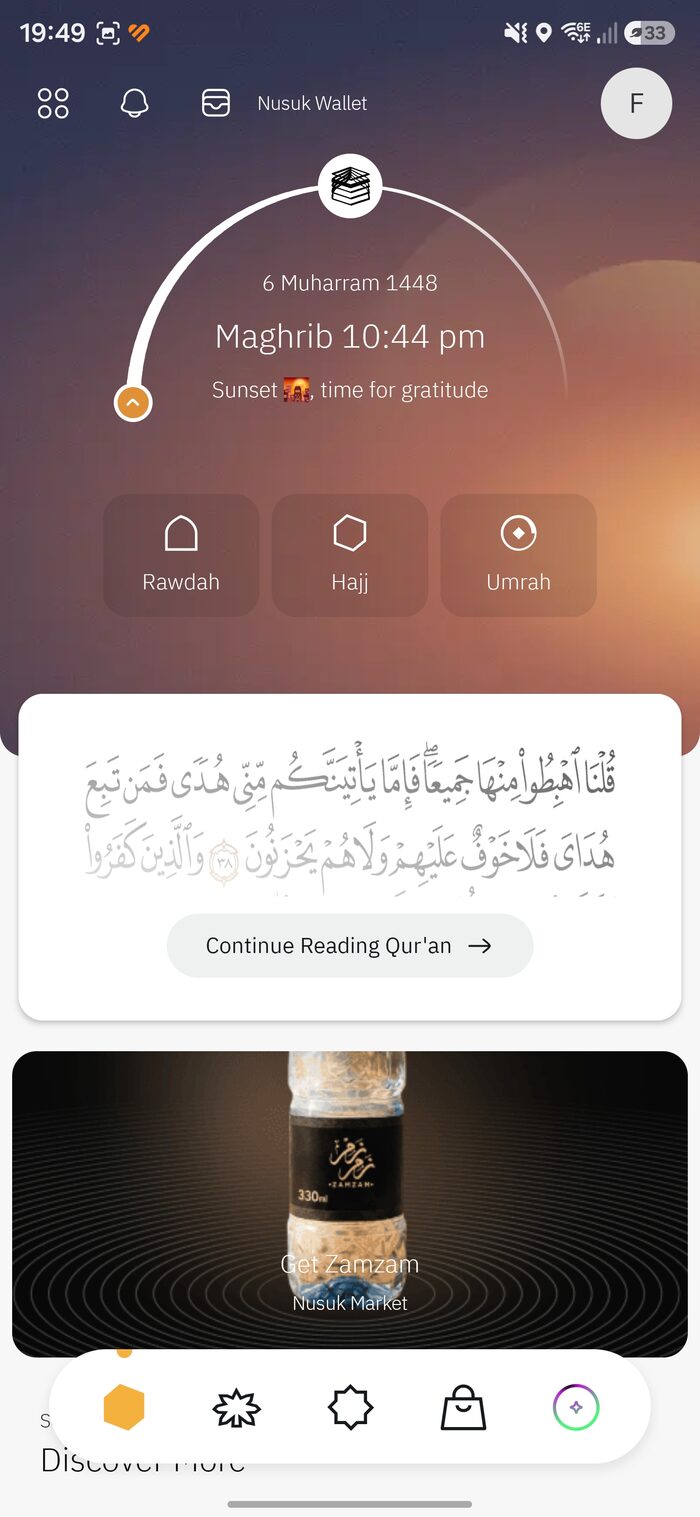
Meet the home screen
You’ll land on the home screen with prayer times, the Nusuk Wallet, and quick tiles for Rawdah, Hajj and Umrah. One more step before you can book.
The home screen -
7
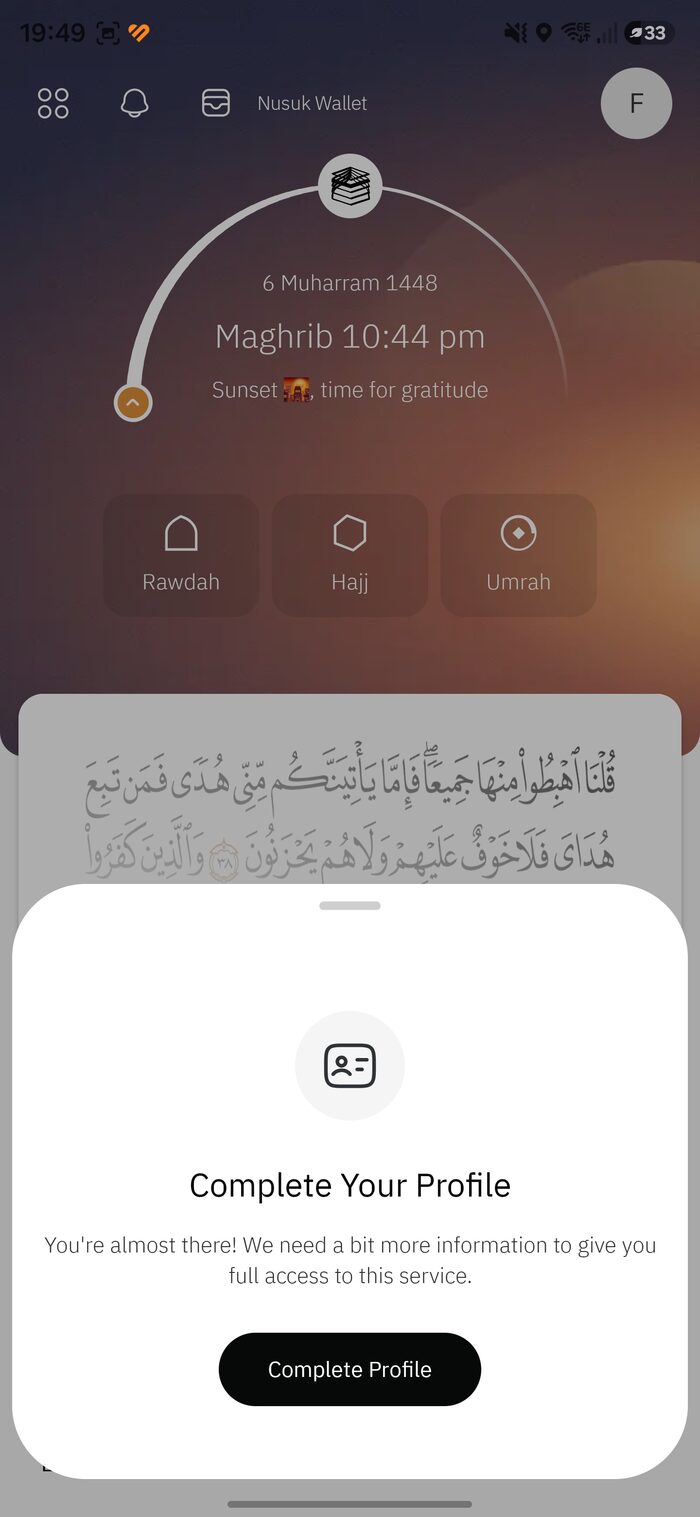
Tap “Complete Profile”
A prompt invites you to finish setting up. Tap Complete Profile (also reachable from your profile icon).
Complete Your Profile -
8
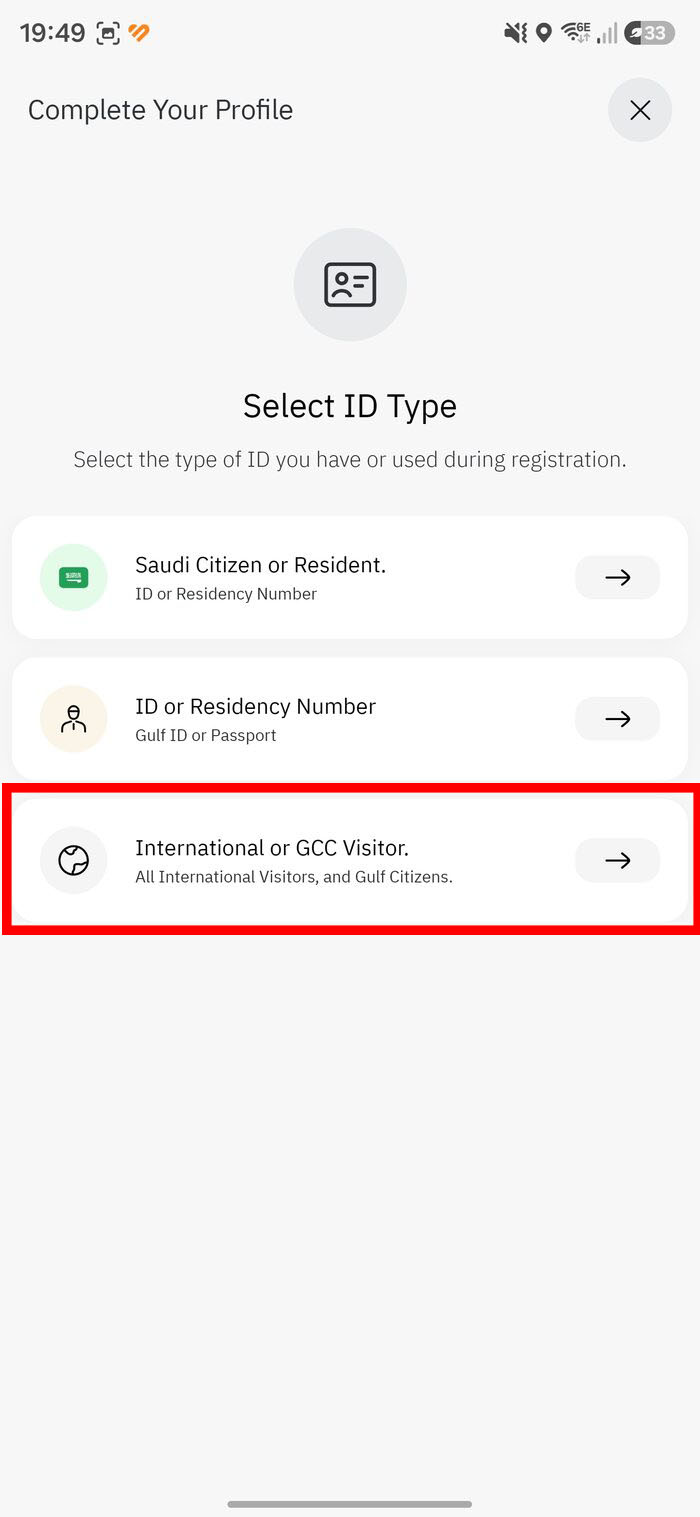
Select your ID type
Tap International or GCC Visitor — the option for all international visitors and Gulf citizens. The other two are for people who live in Saudi Arabia or the GCC.
Choose “International or GCC Visitor” -
9
Build your profile
Provide your nationality, passport number, and one verification number — your visa number (on your e-Visa) or border number (assigned on entry).
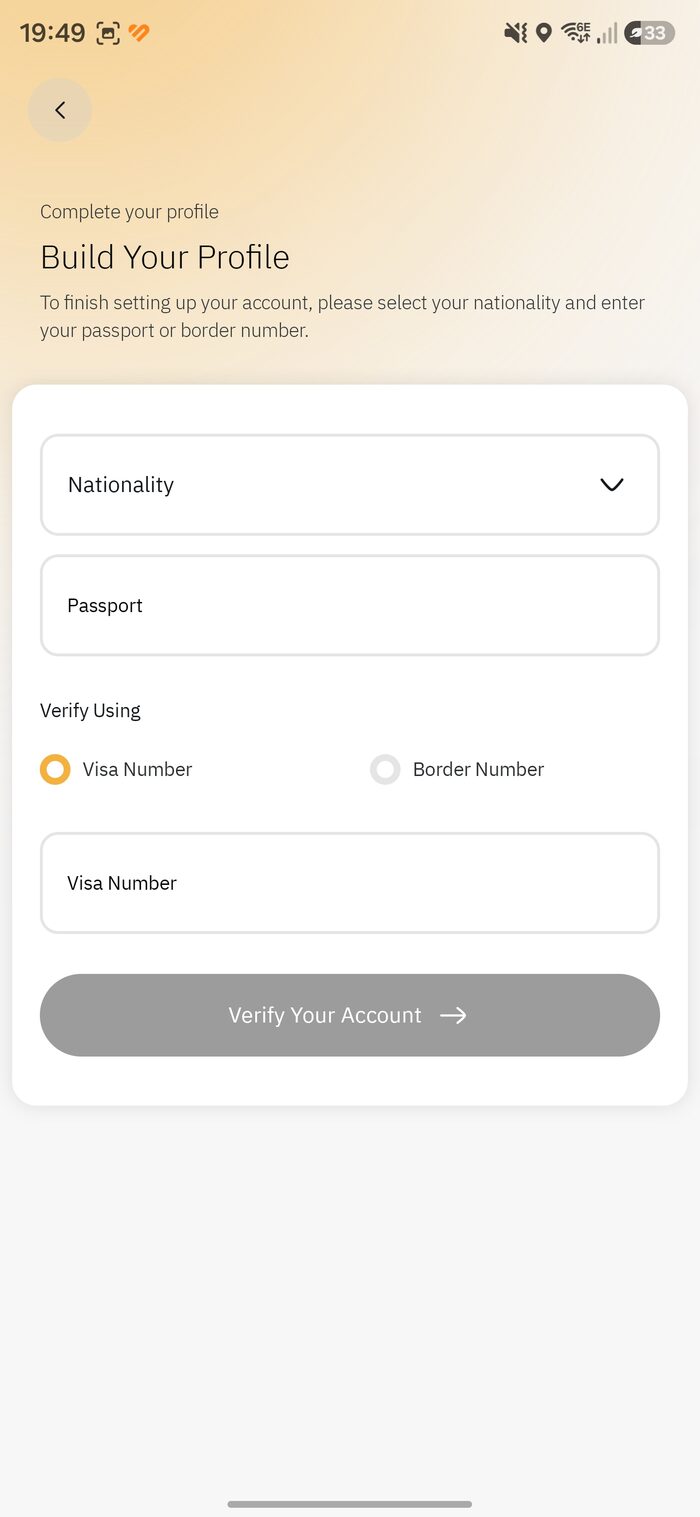
Build Your Profile -
10
Pick your nationality
Tap the field, search your country, and tap Confirm Selection.
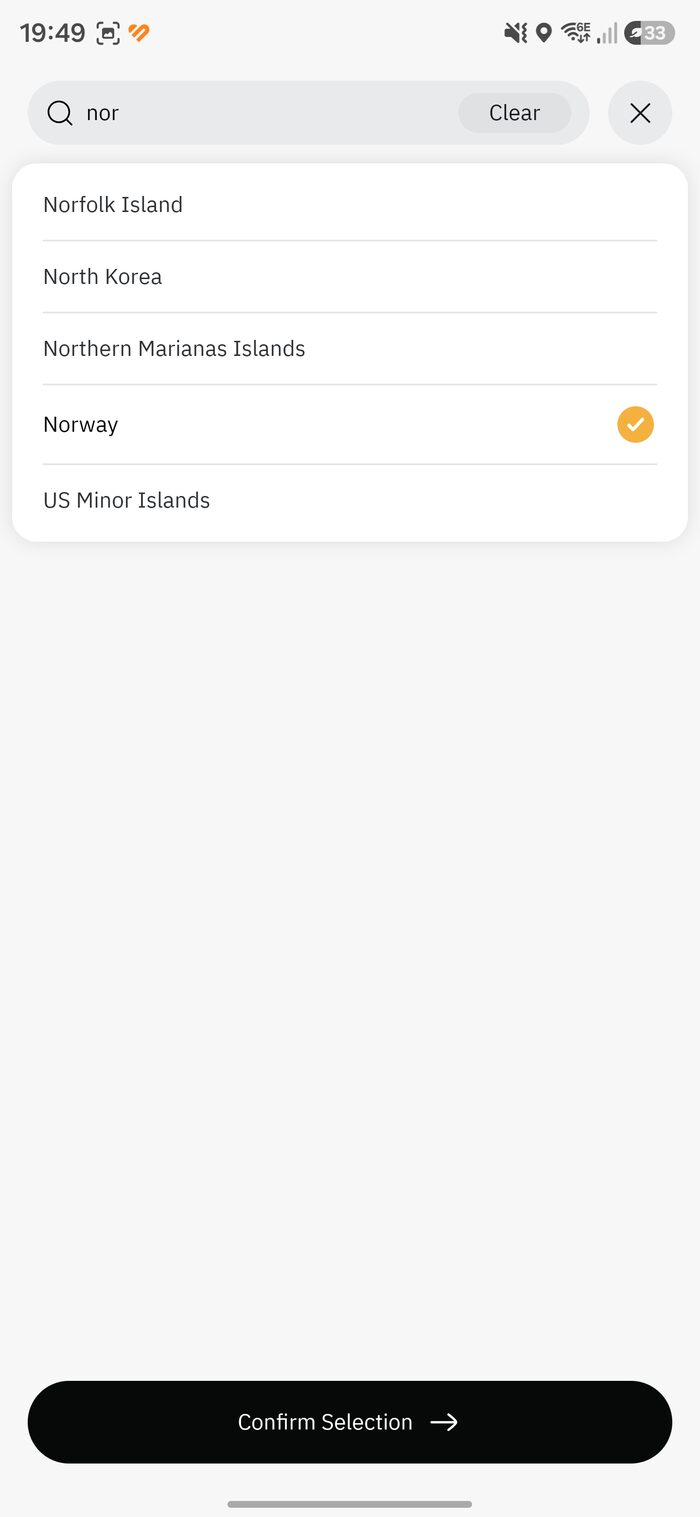
Search & confirm your country -
11
Enter your numbers and verify
Type your passport and visa/border number exactly as printed, then tap Verify Your Account.
Heads upA single mismatched digit or an extra space is the number-one cause of the “Something Went Wrong” error.
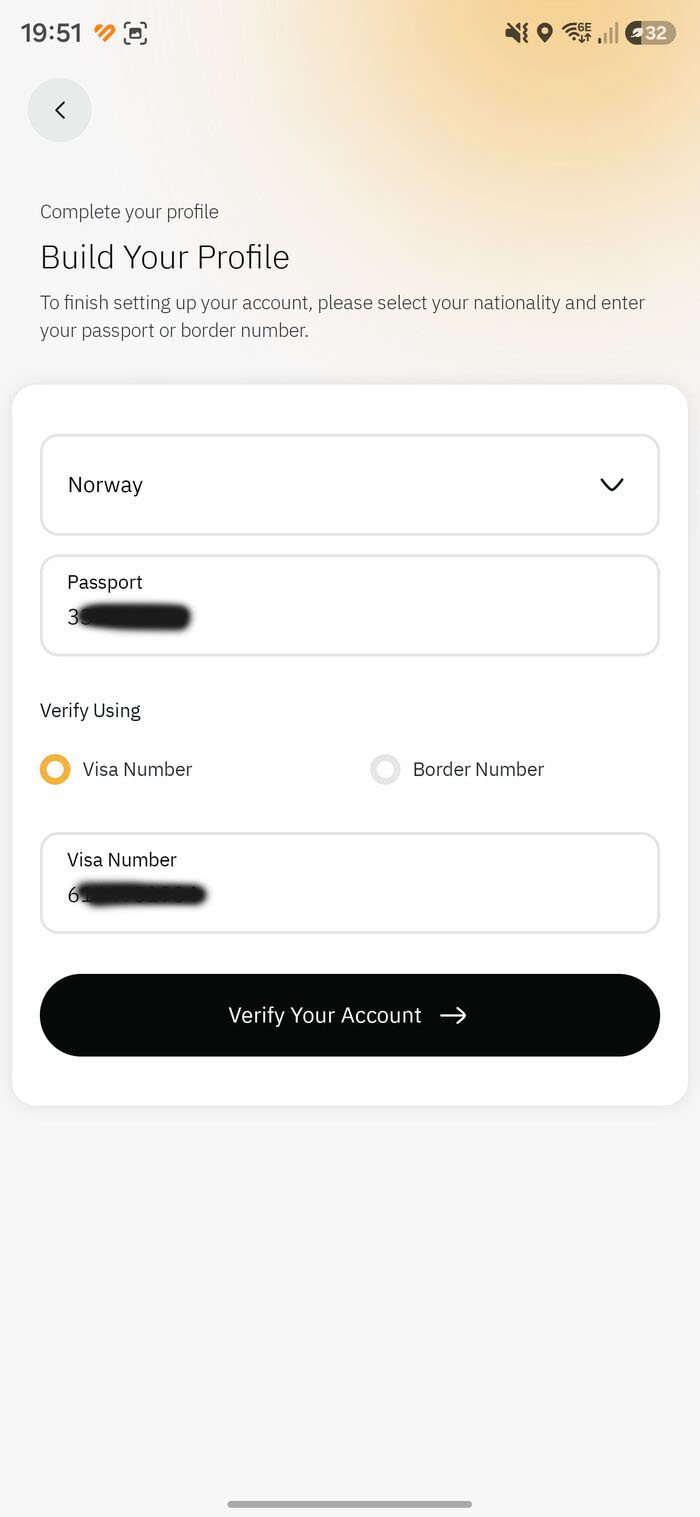
Filled in, ready to verify -
!
If you see “Something Went Wrong”
Usually your visa data hasn’t synced yet. Wait 24–48 hours after the visa was issued, re-check every digit, try the other number type, and retry. More fixes in Common mistakes.
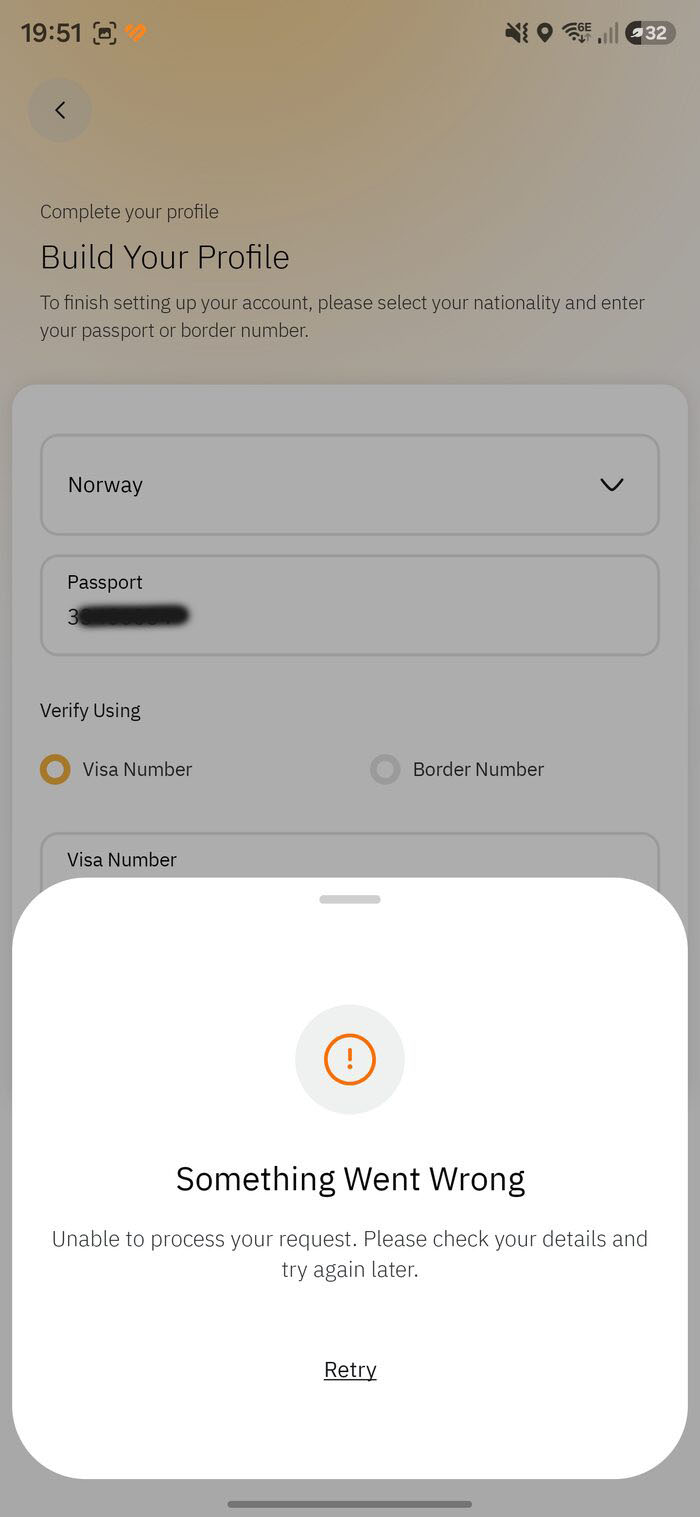
Common — retry later -
12
Success — “Information Updated”
When your details verify, you’ll see “Information Updated.” Tap Continue Exploring — your account is ready to book permits. Next: book your Umrah slot.
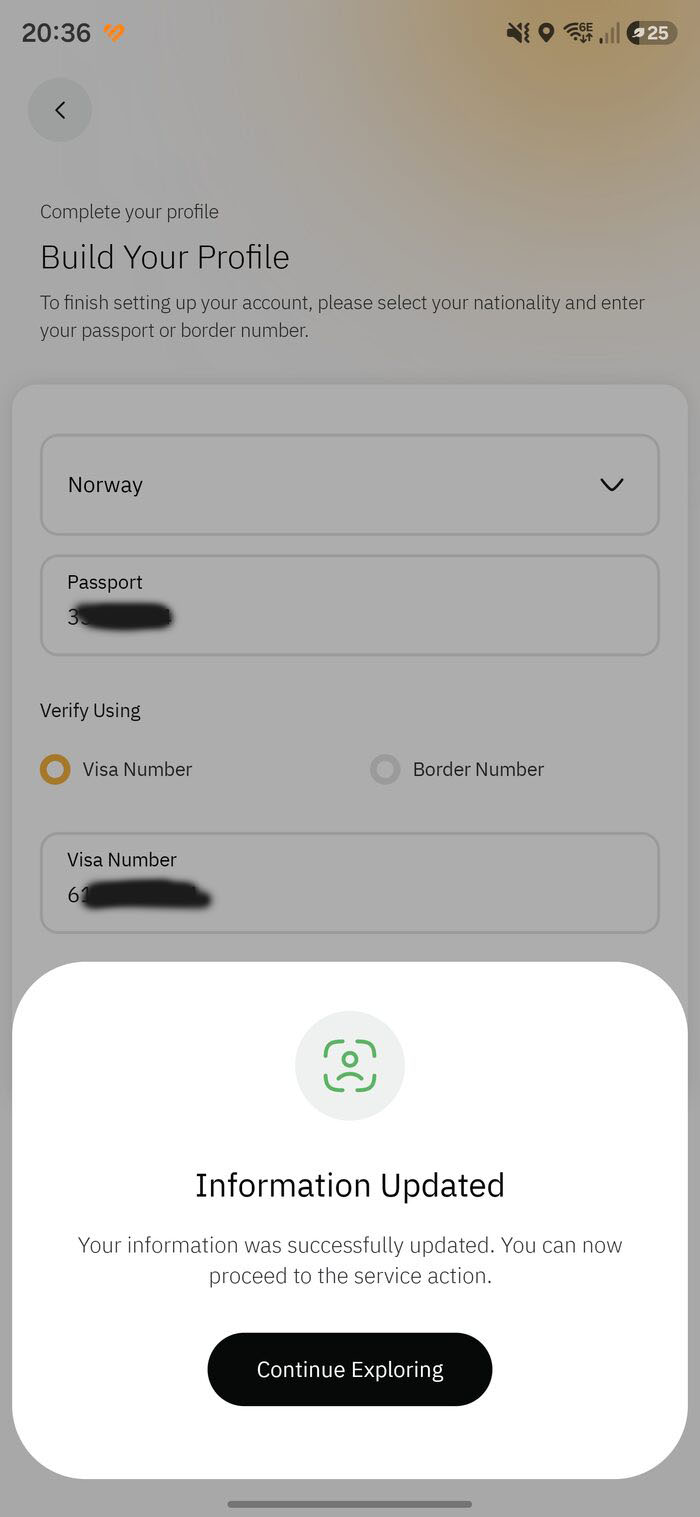
Verified successfully