· Overview
About Nusuk Hajj
Nusuk Hajj is the one-stop platform overseen by the Ministry of Hajj and Umrah. It offers pilgrims from serviced countries a range of Hajj packages provided by authorized service providers, so you can plan, register and book your Hajj in one place. This guide walks the whole platform step by step, so you can use every feature with confidence.
App vs. platformTwo different products share the Nusuk name. The Nusuk app books your free Umrah and Rawdah permits. Nusuk Hajj (this guide, at hajj.nusuk.sa) is where you register and book a paid Hajj package. You don’t use one to do the other.
Avoid scamsRegister and pay only inside the official platform. No genuine agent asks for a private “registration fee,” and your Nusuk IBAN is personal — never share it with anyone.
01 Registration
Create your account
On the home page you’ll find Start Registration and Registration Assistance. Registration takes a couple of minutes: pick your country, verify your email, and set a password.
-
1
Open the home page and start
From the Nusuk Hajj home page, press Start Registration. If you need help first, Registration Assistance opens the Help & Support page (see below).
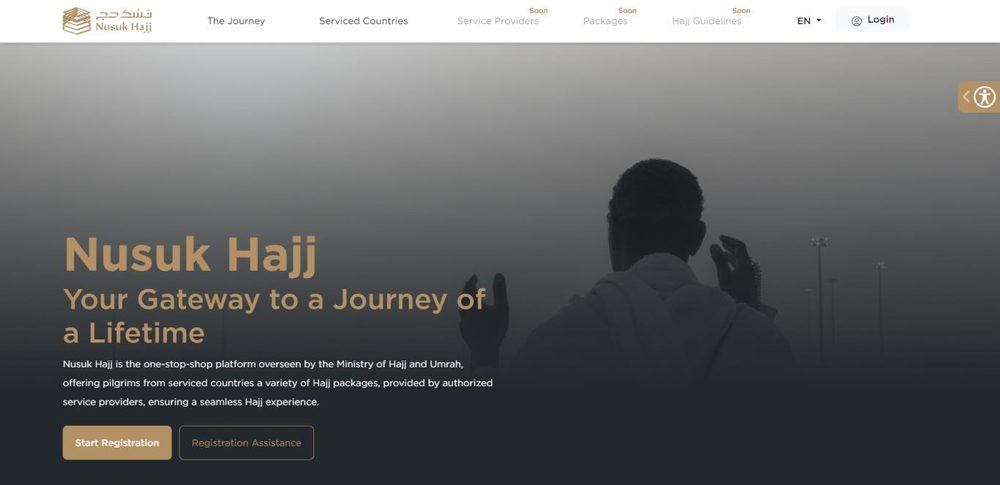
Home → Start Registration -
2
Choose your country and email
Select your Country of Residence from the list (it includes every country served for this Hajj season) and tick the box to confirm it. Enter an email address you can open now, read the Terms & Conditions and Privacy Policy, tick to agree, then press Create Account.
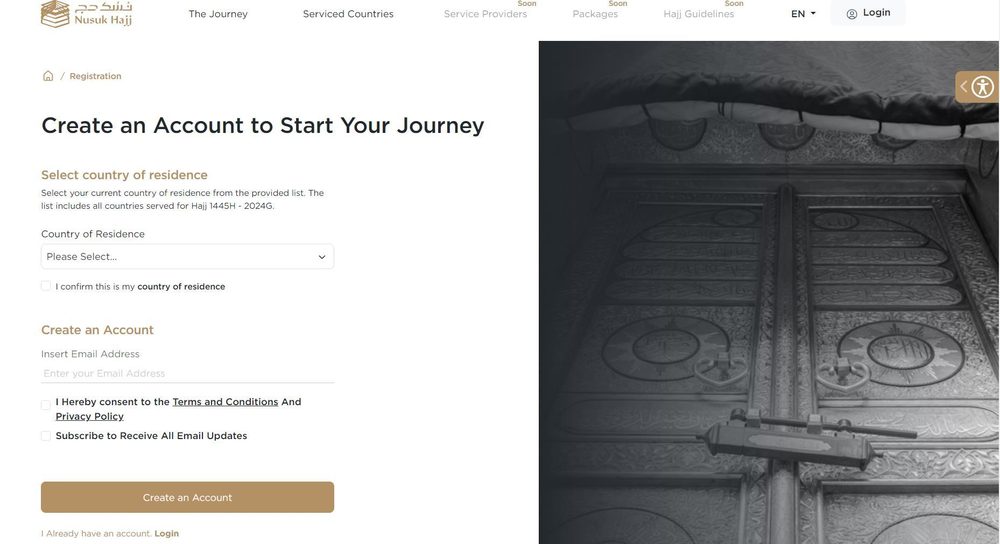
Country + email -
3
Verify the OTP from your email
You’re taken to the Verification page. Enter the one-time code (OTP) Nusuk emailed you. If it’s slow to arrive, check your spam or junk folder, or press Resend when the timer ends.
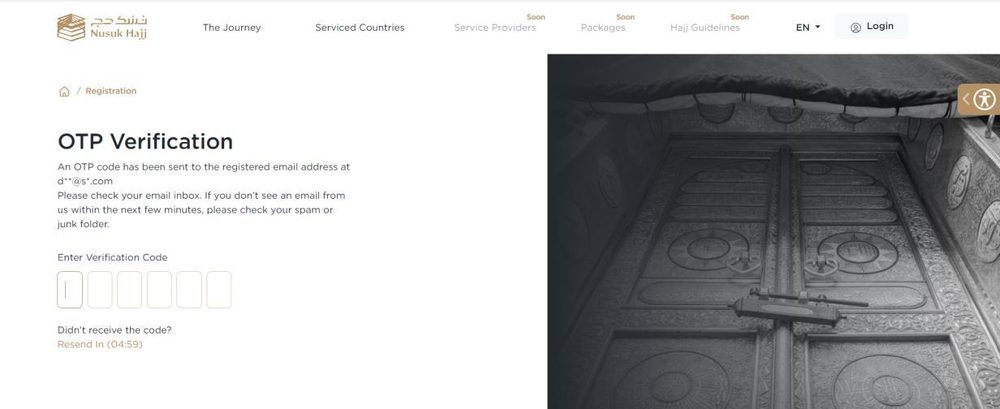
Enter the emailed code -
4
Set your password
On the Create Password page, fill in New Password and Confirm Password. The password must satisfy the policy shown: at least 8 characters, one lowercase and one uppercase letter, one number, and one special character (@#$%*&). Press Create Account, then OK to go to the login page.
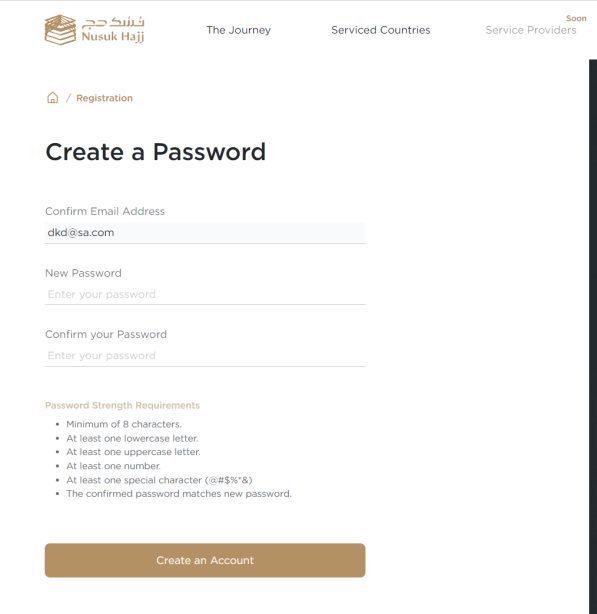
Create a password
Registration Assistance & support
Registration Assistance opens the Help & Support (FAQ) page, where you can search common questions about the platform, registration, family members, packages and booking. Support is available through five channels:
Live Chat
Press Start Chat to open a live chat window with an agent.
Support Email
Press Email Us, fill in your name, email, mobile and topic, then Send Ticket.
Support Centers
Press Book an Appointment, add location, name, contact, email, date & time, then Book Appointment.
Social Media
Reach the team through the official channels — @Hajj_Nusuk.
Call Center
Dial the number shown to speak with support directly.
02 Login
Log in to your account
Signing in uses your email, your password, and a fresh emailed code each time.
-
1
Enter your email and password
On the login page, type the email you registered with and your password, then press Login.
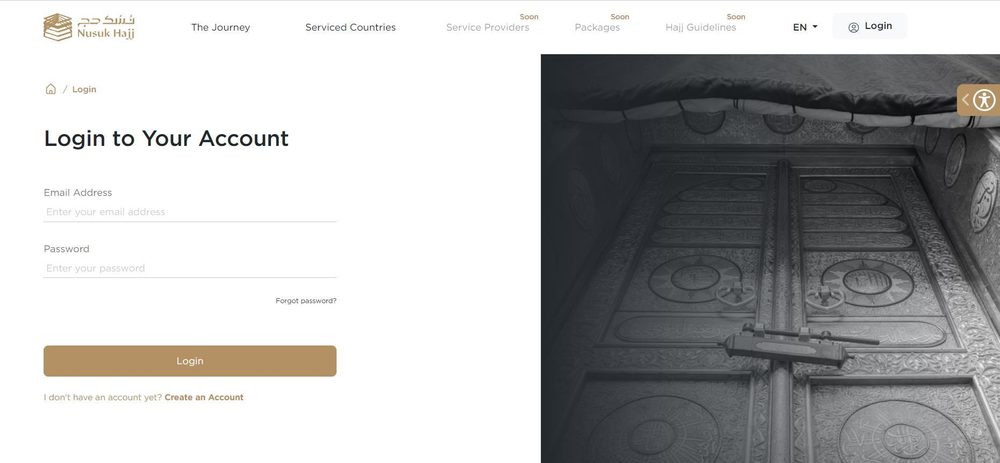
Login -
2
Enter the verification code
Nusuk emails a verification code — enter it to finish signing in. Forgotten your password? Jump to Forgot password.
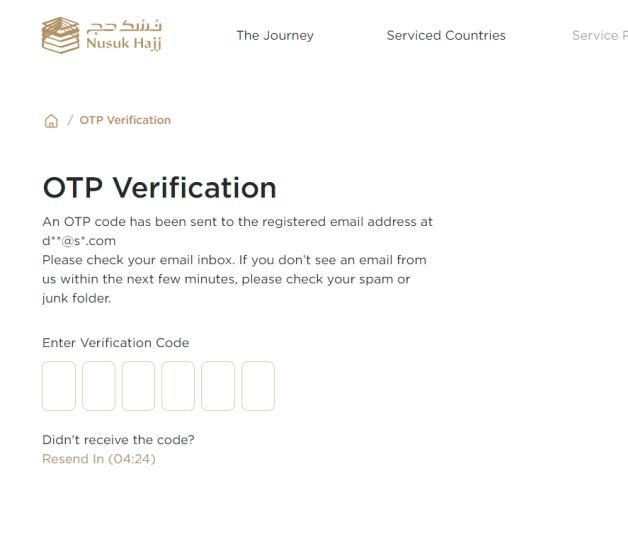
Email verification
03 Continue registration
Verify your documents & complete the application
After logging in you land on the Uploading Guide, which lists the files you’ll need: your passport, a personal photo, and proof of residence. Press Start Uploading to begin.
3.1 Upload your documents
-
1
Upload passport & personal photo
Add your Passport and Personal Photo (the accepted format and size are listed under each field), then press Next. You can pause anytime with Save & Continue Later.
Photo not accepted? Fix your Nusuk photo in seconds nusukphotos.com auto-corrects the size, white background and file format to match the official Nusuk photo guidelines. Fix my photoTipScan clearly. Make sure your passport is valid for at least 6 months before your arrival in the Kingdom, and use a plain, formal personal photo.
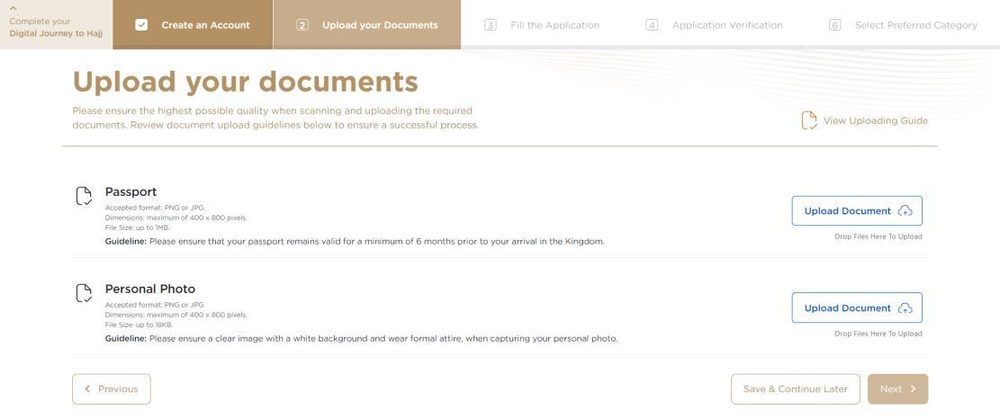
Passport & personal photo -
2
Review the summary
The Summary page shows your Personal Information, Personal Photo and Uploaded Documents pulled from your passport. Check every field, edit anything that’s wrong, tick “I agree to the above data and confirm its accuracy,” and confirm to proceed.
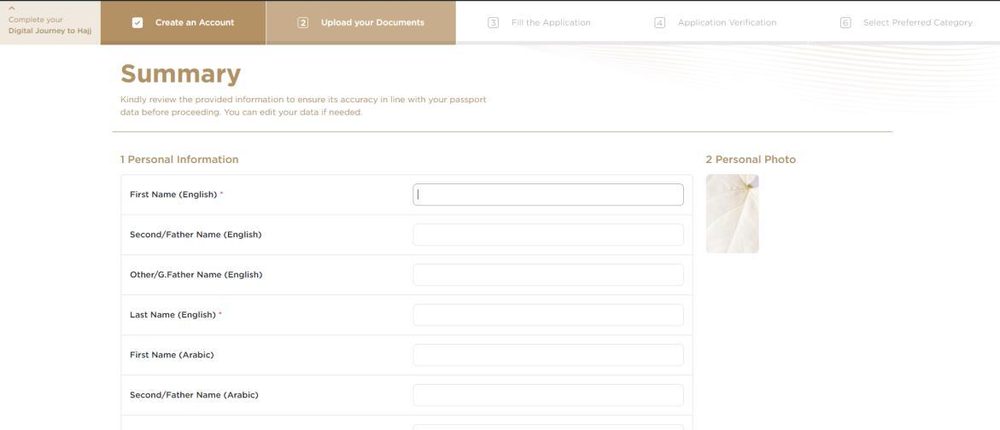
Summary & confirm accuracy -
3
Upload proof of residence
Back on the upload page, add your Proof of Residence. If you don’t have a residence permit, you can use an employment contract, driving licence, lease agreement, property document, work visa or bank statement. Review the summary once more, then press Next.
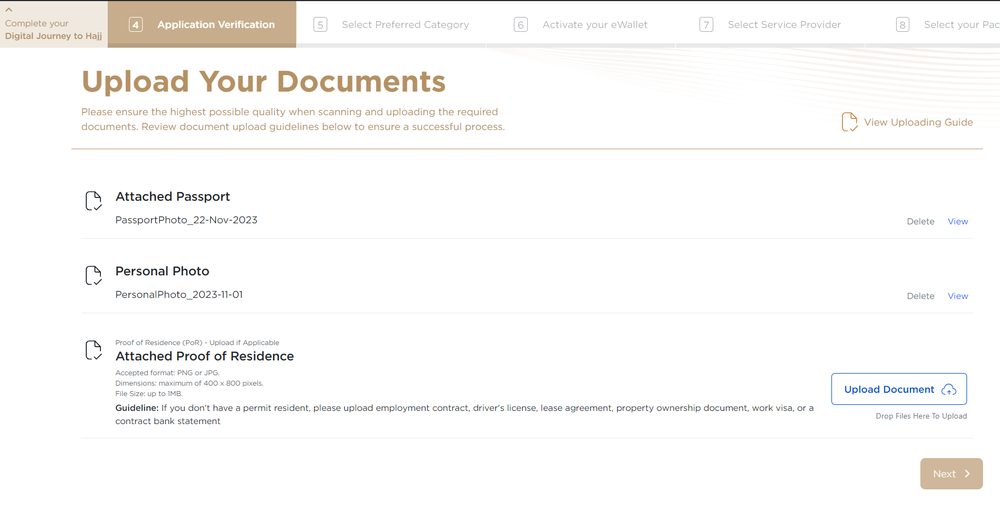
Proof of residence
3.2 Fill the application
Completing your application is what makes you eligible for a visa once you buy a package. Work through the sections in order:
-
1
Contact, occupational & arrival details
Contact Details — mobile number, address, social status, emergency contact and nearest embassy. Occupational Details — occupation, current and previous employer, and sector. Arrival Details — expected entry date, days in the Kingdom and travel method. Press Next.
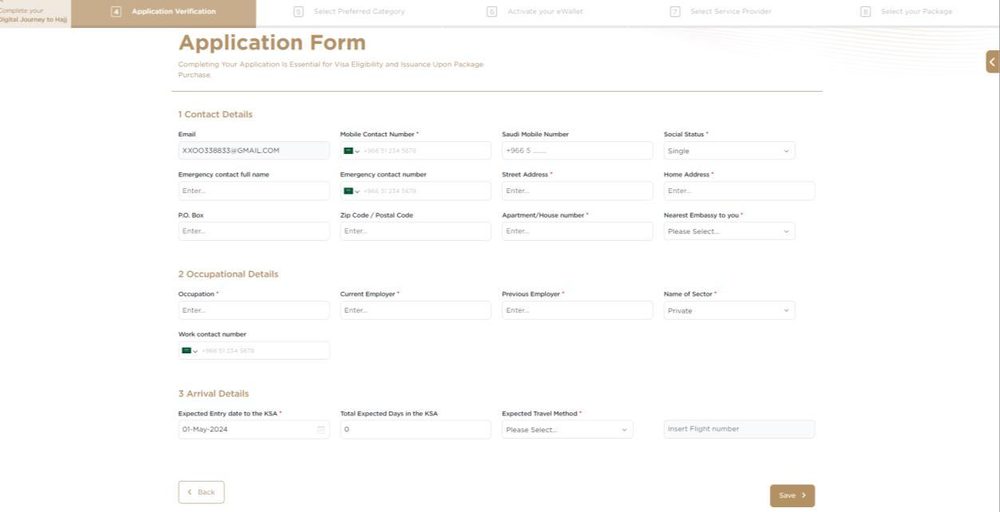
Application form -
2
Background details (two parts)
Answer the Background Details questions — previous visas, relatives in the Kingdom, other nationalities, past travel and so on. There are two parts to complete before moving on.
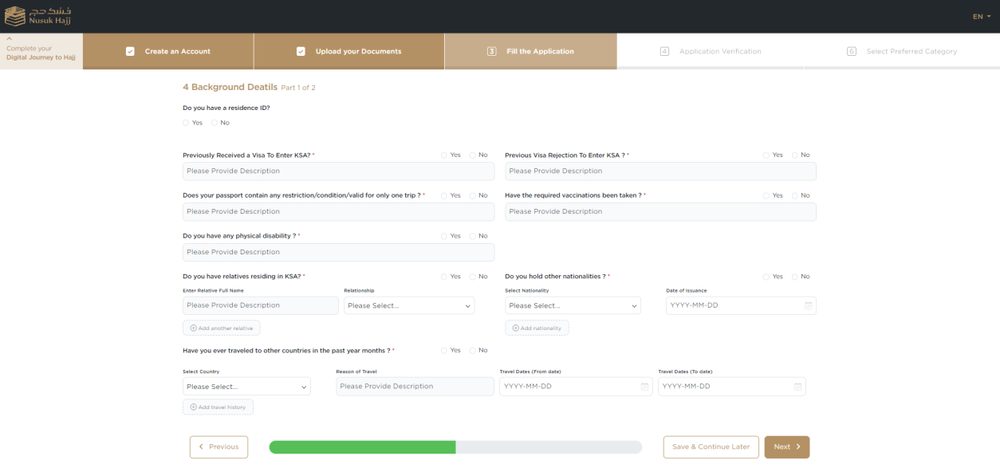
Background details -
3
Accessibility, health & allergy
Tell providers how to look after you: choose any Accessibility Requirements (wheelchair, Braille, sign-language, other), Health Conditions (diabetes, blood pressure, heart, asthma, other) and Allergies (food or other). Use the “specify” box for anything marked Other.
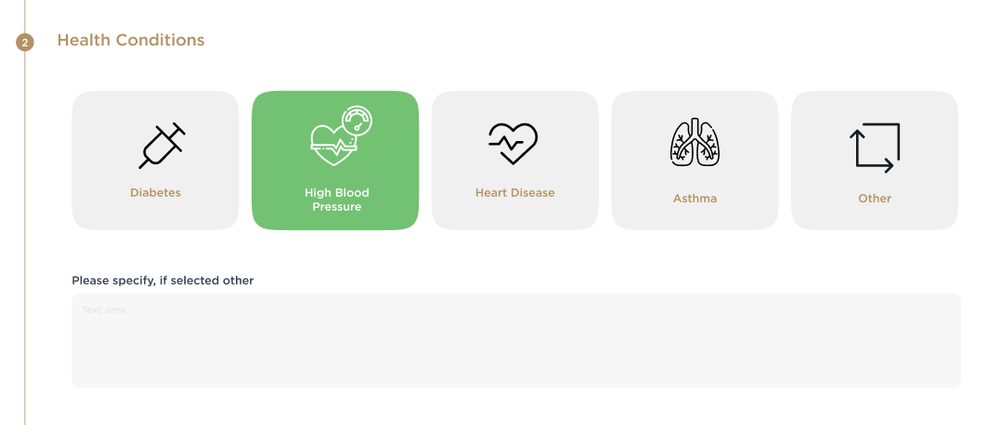
Health & accessibility -
4
Review the summary and submit
Read the full Summary, tick the consent boxes (data use, tentative approval, vaccination certificate, and the Terms & Conditions), then press Submit and confirm on the Confirm Submission dialog.
TipYou can also add a family member at this stage — or later from the My Family section.
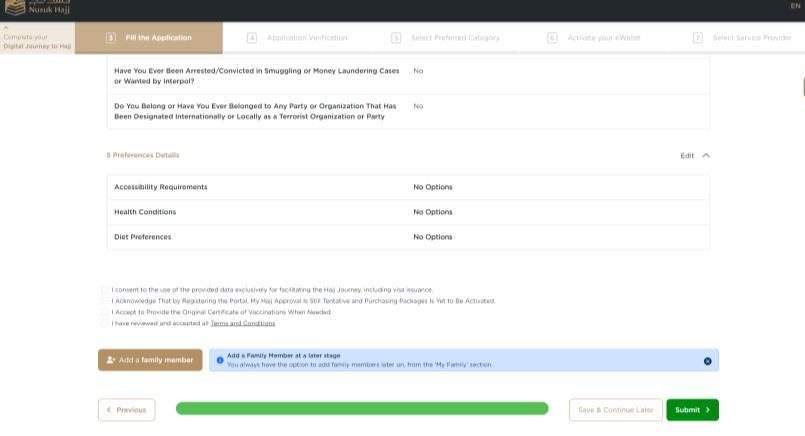
Summary → Submit -
5
Application submitted
You’ll see “Application Submitted Successfully.” Your application is now in the review queue. From here you can explore the site while it’s verified.
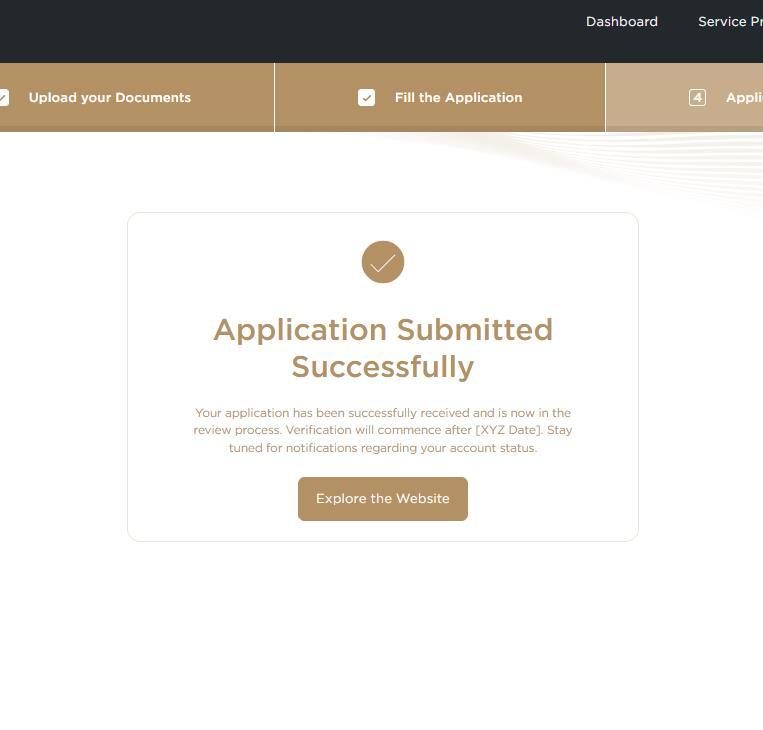
Submitted for review
04 My Profile
Your profile & application status
From the account menu (top right) open My Profile to track your status and manage your details.
-
1
Check your application status
Your profile shows the current status:
- Under Verification — your application is being reviewed.
- Verified — approved; you can move on to categories and packages.
- Rejected — you’ll get an email with the reason. Fix your details and the status returns to Under Verification until you hear back.
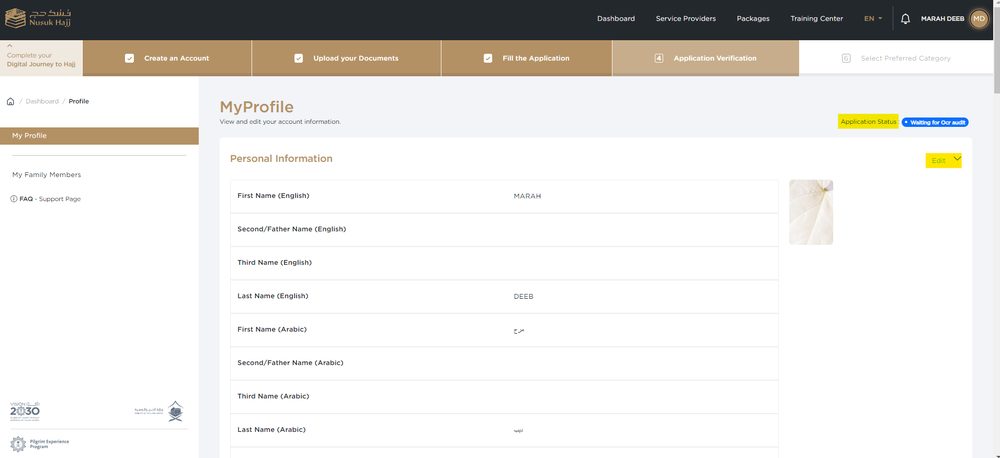
Application status -
2
Edit details, manage family, or delete
From here you can check or edit your Personal, Contact, Occupational, Arrival, Background and Preferences information; open My Family Members; or delete your account.
Before deletingYou can only delete your account when no family members are attached and any wallet balance has been refunded first. Deletion permanently erases your data.
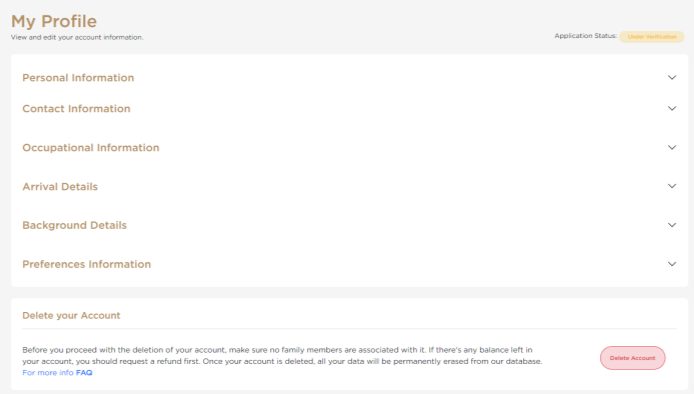
Edit or delete
05 My Family
Add & manage family members
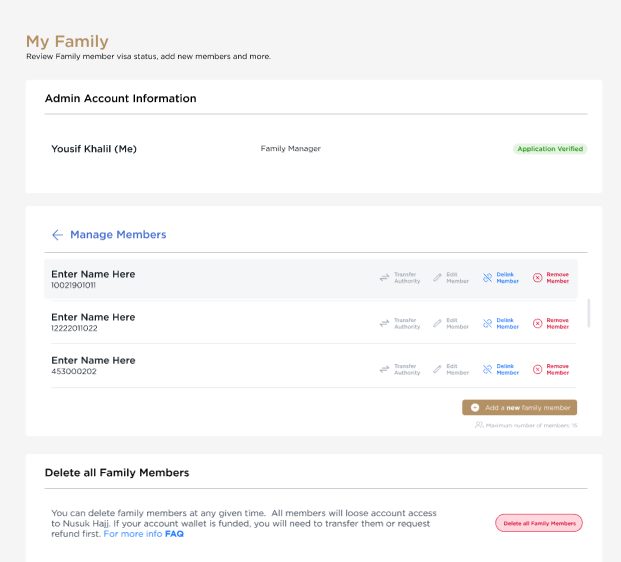
One person (the admin) can register and manage the whole family — up to 8 members — handling their applications, package and payment. Responsibilities can later be transferred to another member.
5.1 Add a member
-
1
Open “Add a new family member”
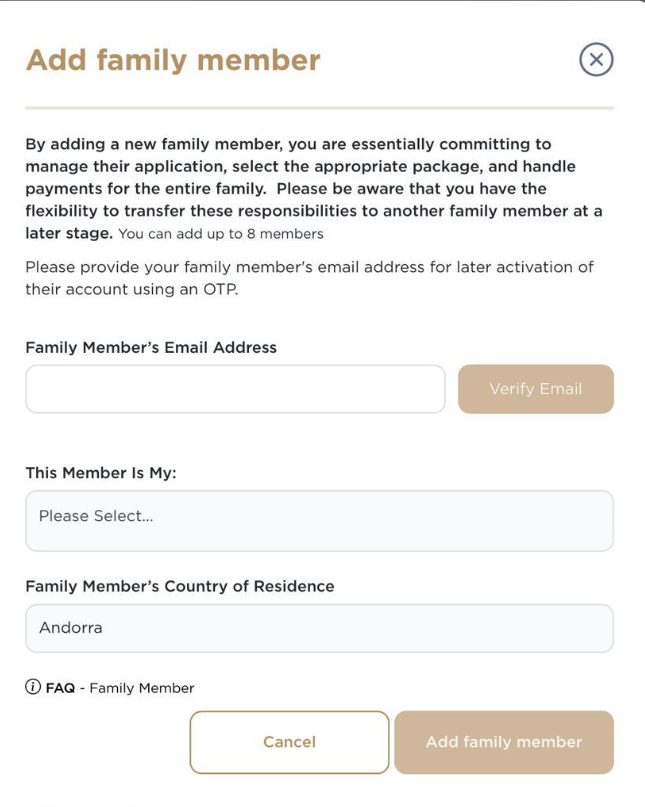
In My Family, press Add a new family member. Enter the member’s email, choose the relationship, select and confirm their country of residence, then press Add family member. They receive an OTP by email to activate their place, after which you complete their documents and application (same steps as section 3).
NoteA member who registers with their own email can only view the profile — the one action on their side is delink. You can add up to 8 members per account.
Add a family member -
2
Manage members
Added members appear under Manage Members, where each row offers Transfer Authority, Edit, Delink and Delete.
Manage members
5.2 Delink, delete, or transfer
Delink a member
Removes the member from your group and erases their records from your account. If they registered with their own email, their account becomes a separate, independent account. You can re-add them later.
Delete a member
Permanently deletes the member — confirm with an OTP sent by email. You cannot delete a member who registered with their own email; you can only delink them.
Transfer authority
Hands the admin role to another member. They receive a notification and can accept or reject; on acceptance, they take over the package and payments.
06 Preferred category
Choose a preferred category
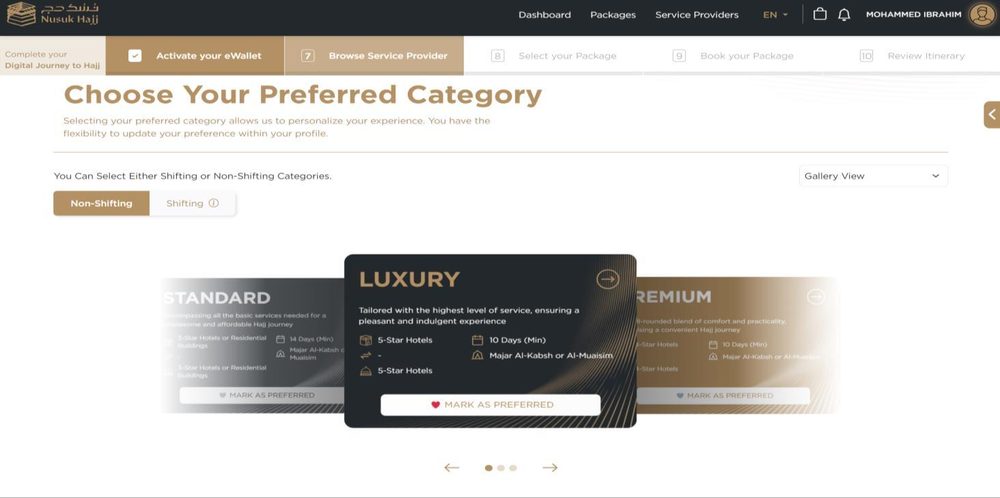
Once your application is verified, you can browse categories and set a preference with Mark as Preferred. You can switch between Shifting and Non-Shifting, and view the options as a gallery, single view, or comparison table.
Luxury
The highest level of service — 5-star hotels in both Makkah and Madinah, for a comfortable and indulgent Hajj.
Premium
A well-rounded blend of comfort and practicality — 4-star hotels — for a convenient journey.
Standard
All the essential services at an accessible price — 3-star hotels or residential buildings.
The comparison table lays out hotel rating, shifting service, Madinah residence, Mina camp (Majar Al-Kabsh or Al-Muaisim) and duration (from 10 days for Luxury/Premium, 14 for Standard) so you can pick the right fit.
07 eWallet
Fund & manage your eWallet
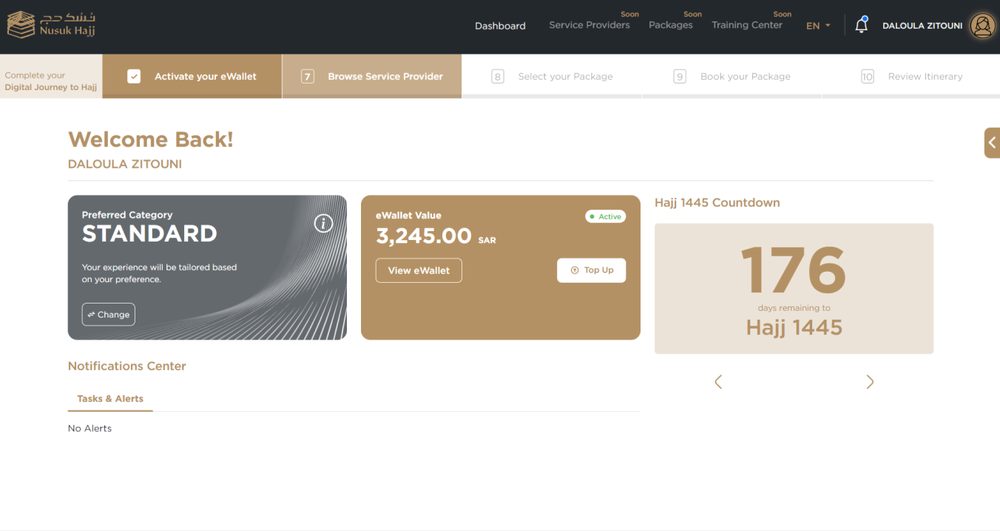
After verification you’re invited to activate your eWallet — the balance you top up to pay for a package. You can also activate it from your dashboard.
7.1 Activate & top up
-
1
Choose a payment method
Press Activate Now and choose Credit Card (swift, instant top-ups) or Bank Transfer (from your bank account).
Credit card or bank transfer -
2
Top up
Credit Card: enter an amount, press Next, and add your card details. Bank Transfer: add your bank details; once saved, the Nusuk bank details appear for you to transfer to.
Keep it privateThe IBAN shown is your personal Nusuk IBAN — keep it confidential. International transfers can take up to about 10 business days to appear in your wallet.
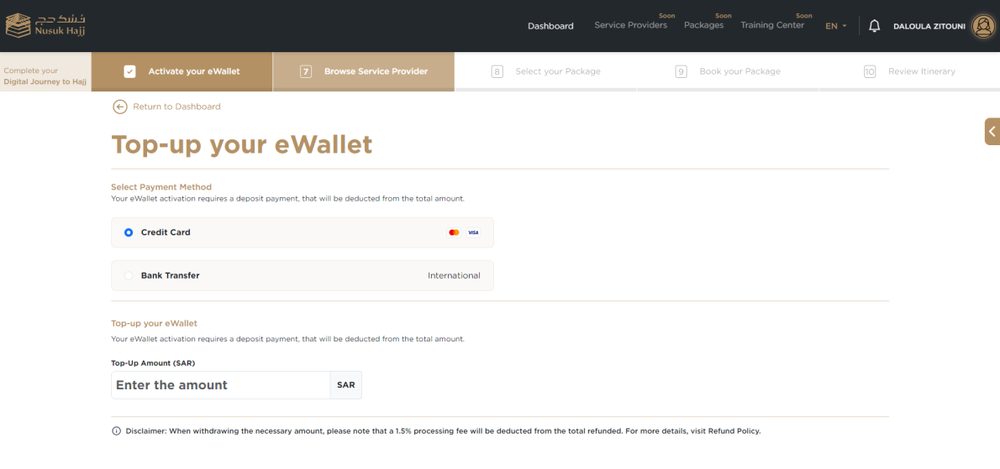
Top-up page
7.2 View your wallet
Open your wallet two ways: from the Dashboard → the eWallet Value box → View eWallet; or from My Profile → My Wallet. Inside you’ll find:
Transaction History
Every top-up and refund on your account.
Bank Account Details
Your saved bank details — editable via Change.
Top-Up
Add more funds to the wallet.
Withdrawal
Start a refund (see below).
Export & Print
Export transactions as PDF, or print them.
7.3 Refund (withdrawal)
How refunds workOpen My Wallet → Withdrawal, read and approve the disclaimer, and the whole balance is refunded through the same methods you used to top up — for example, 100 charged by card returns to the card and 50 by bank transfer returns to the bank. A processing fee (around 1.5%) may be deducted.
08 Become a Guide
Apply to become a Guide
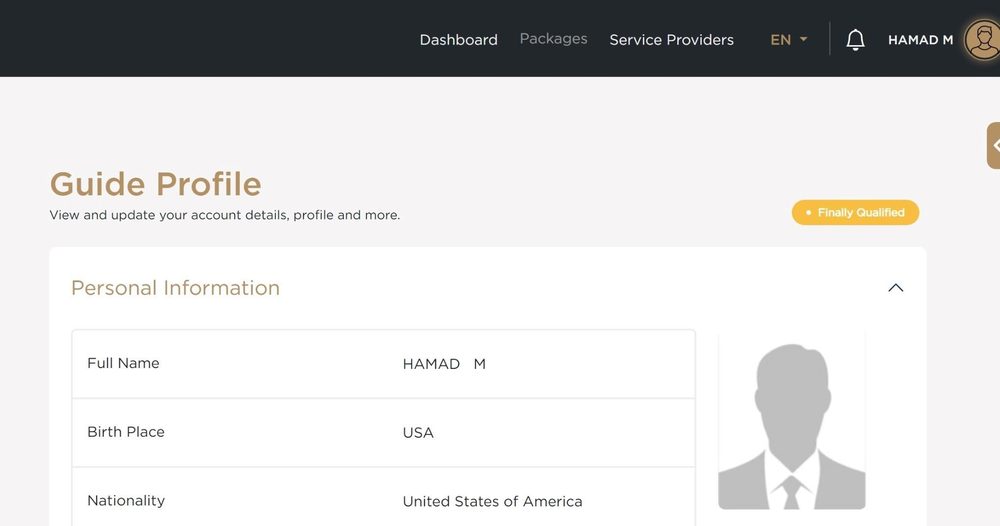
Once your application is verified, an option appears to apply as a mentor (Guide) for other pilgrims.
- From the home page, press Become a Guide and submit the application.
- Complete the Qualification Questionnaire so you’re matched to pilgrims who fit your skills.
- Build your Guide Profile — background, cultural insight and experience.
- Track the stages on the page; you’ll be contacted with an approval or rejection.
- Once accepted, your profile is shown to service providers, and any contracts sent to you appear under your alerts.
EligibilityYou can’t register as a Guide if a family member is added, and your eWallet must not be charged. Your account must have been finally approved by the audit team at least once, and you can register as a Guide only one time.
09 Packages & booking
Browse, configure & book a package
With your category chosen and your eWallet funded, you’re taken to Book your Package. Filter to what you need, open a package, read its details, then configure and pay.
9.1 Package details
-
1
Find a package
Browse the list or use Filter Packages (category, proximity to the Haram, Mina camp, service provider, duration, price). When one fits, press View Details.
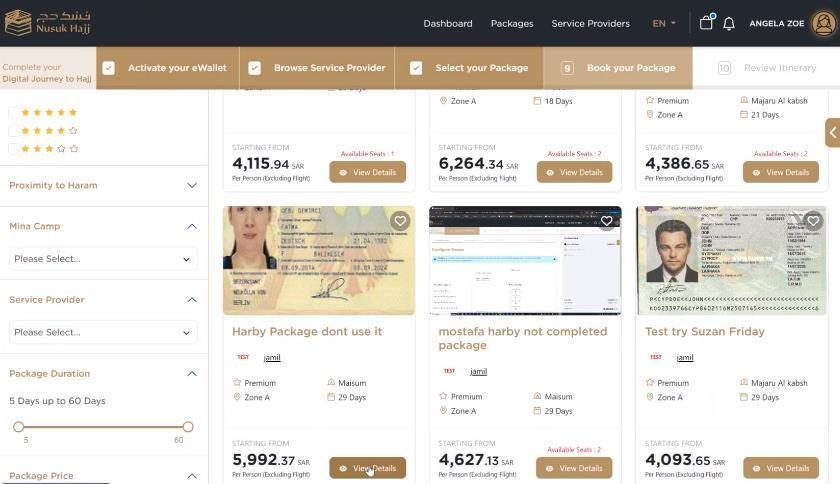
Packages listing -
2
Read the details
The details page covers Overview, Residency (hotels, with a camp tour to watch), Mashair Camps, Transportation and Package Services (included, not included, and paid extras).
Read firstYou must read the cancellation policy before continuing.
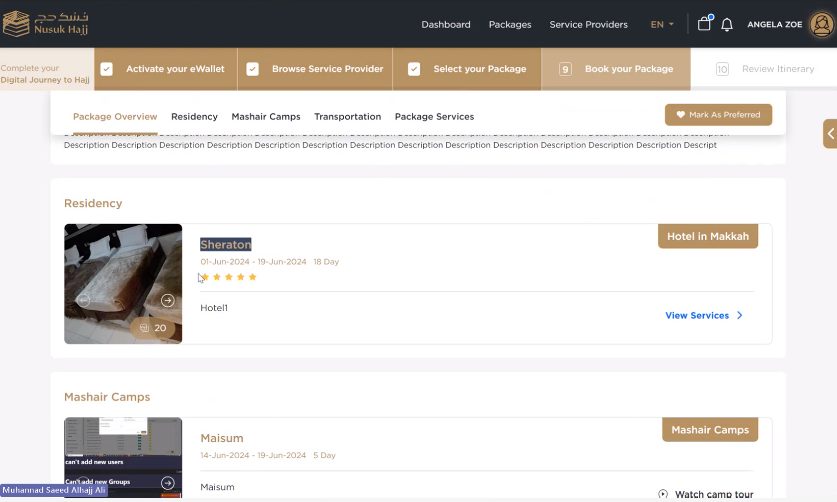
Package details -
3
Configure & pay
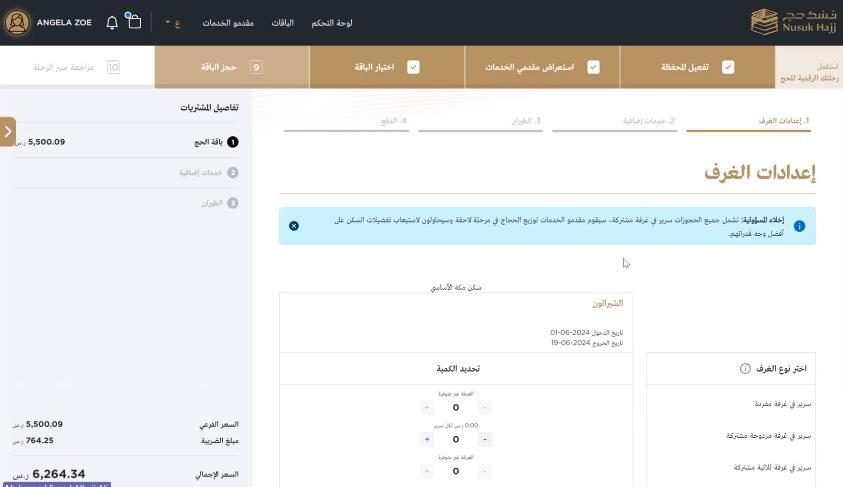
Press Configure and set up your package: choose your Makkah and Madinah hotel beds, any additional services, and your flight. Then proceed to payment and wait for confirmation.
NotesYour wallet must hold more than the package price, and every pilgrim (you and all family members) must be verified. After you buy, the system can take up to 5 minutes to check the package and process payment; if it isn’t confirmed, the reason is shown.
Configure the package
10 Forgot password
Reset your password
If you registered with your email and can’t sign in, reset your password from the login page.
- From the home page, go to Login and press Forgot Password.
- Enter your registered email, agree to the terms, and press Send Reset Link.
- Open the reset link emailed to you.
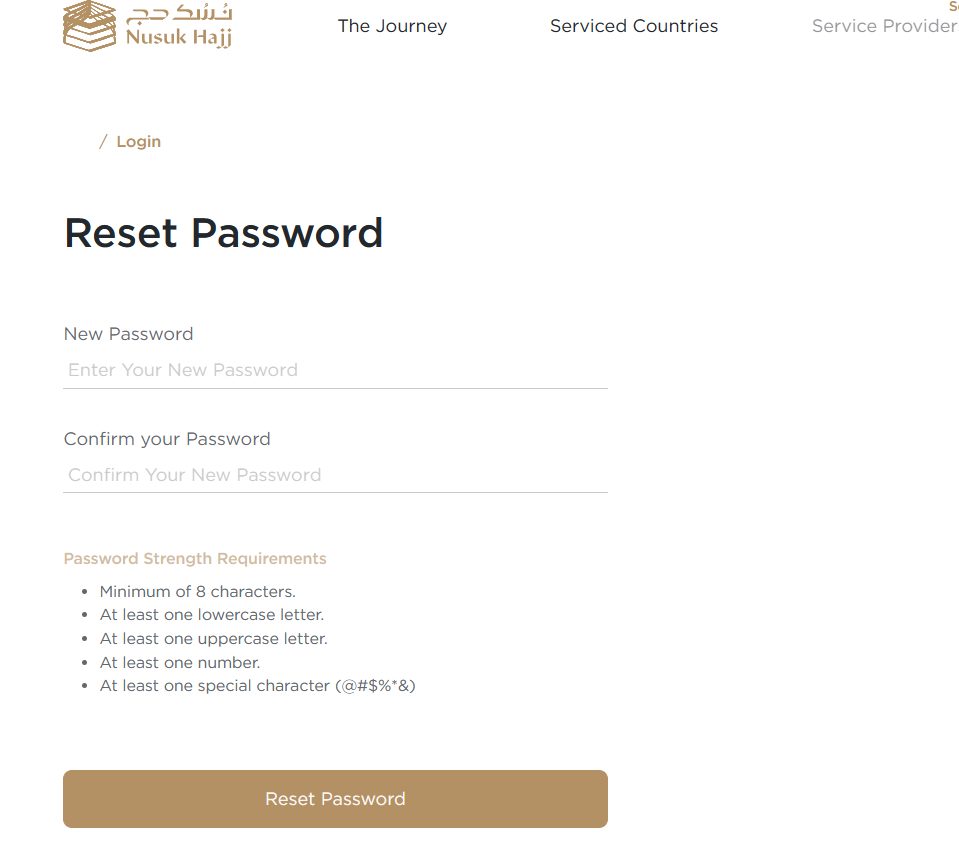
- Enter a new password (same policy as registration), confirm it, and press Reset Password.
- You’re returned to the login page to sign in with the new password.
· Support
Communication channels
Official ways to reach Nusuk Hajj support.
| Website / Live Chat | hajj.nusuk.sa |
|---|---|
| Support Email | Support@hajj.nusuk.sa |
| Support Centers | Book an appointment through the platform |
| Social Media | @Hajj_Nusuk |
| Call Center | +966 9200 31201 |
Independent guideThis is an independent walkthrough — not affiliated with Nusuk or any government body. Screens, rules and policies can change; always confirm the latest details on the official platform before you register or pay.
· FAQ
Frequently asked questions
The most common questions about registering and booking Hajj on Nusuk, drawn from the official hajj.nusuk.sa. Rules and fees can change each season — always confirm the latest details on the platform.
About Nusuk Hajj
What is the Nusuk Hajj platform?
Nusuk Hajj (hajj.nusuk.sa) is the official digital platform overseen by the Saudi Ministry of Hajj and Umrah. It lets pilgrims from serviced countries register, choose a package from an authorized service provider, pay, and receive their Hajj visa and itinerary — all in one place.
What is the Direct Hajj Program?
It is a Ministry of Hajj and Umrah programme that serves pilgrims from countries with Muslim minorities that do not have an official Hajj mission to arrange their pilgrimage. Nusuk Hajj is how those pilgrims register directly.
Is Nusuk Hajj the same as the Nusuk app?
Which countries can use Nusuk Hajj?
Only serviced (targeted) countries, which the Ministry designates each year. Check the Serviced Countries list on the platform before registering — availability depends on your nationality or residency.
Eligibility & registration
Does registering mean I have been accepted for Hajj?
No. Registering does not guarantee acceptance. Your data is verified first, and packages and payment become available at a later stage. Follow the platform updates and notifications.
Who is eligible, and is there an age limit?
You must be from a serviced country and meet the Ministry's requirements. For the current season, pilgrims generally must be over 15 years old. Age and eligibility rules can change each year, so confirm on the platform.
What documents do I need to register?
A clear scan of your passport and a recent personal photo (colour, white background, full face). Your passport must be valid for at least six months beyond your return — for Hajj 2026, valid through the end of 2026 — and ideally have two blank pages.
Do I need proof of residence?
If you live in a country that is not your country of origin, yes — upload a valid proof such as a residency card, work visa, employment contract, lease or property document.
How long does verification take, and what do the statuses mean?
Verification can take anywhere from about 24 hours to several weeks depending on volume. Your status shows as Under Verification, Verified, or Rejected (you receive an email with the reason; fix it and it returns to Under Verification).
I forgot my password or cannot log in. What do I do?
On the login page use Forgot Password, enter your registered email, and open the reset link to set a new password. Then log in with your email, password and the emailed verification code. See section 10.
Family members
Can I register my family together, and how many members?
Yes. One admin manages the whole group and handles applications, package and payment. You can add up to 8 members to a family group, and every member must be verified before you can book.
What is the difference between delink, delete and transfer authority?
Delink removes a member from your group (a self-registered member becomes independent). Delete permanently removes a member and needs an OTP (you cannot delete a self-registered member, only delink). Transfer authority hands the admin role to another member, who must accept it.
Categories & packages
What package categories and durations are available?
Three categories — Luxury (5-star), Premium (4-star) and Standard (3-star or residential) — each in Shifting or Non-Shifting form. Minimum durations are around 6 days for Mashair, 10 days for Non-Shifting and 14 days for Shifting packages.
What is included in a Hajj package?
Packages bundle your accommodation in Makkah and Madinah, Mashair camps, transportation, listed services and visa issuance. Each package page shows what is included, not included, and available for an extra fee — read the cancellation policy before booking.
How do I book a package?
Once verified: choose a preferred category, fund your eWallet, open Book your Package, select and configure a package (hotels, extras, flight), and pay. Everyone in your group must be verified, and the system can take a few minutes to confirm. See section 9.
Payment, eWallet & refunds
Is registration free, and is the package paid?
Creating your account and applying is free. A Hajj package is paid — you top up an eWallet and pay the provider from it. (This differs from the free Umrah and Rawdah permits in the Nusuk app.)
How do I pay, and what is the eWallet?
You fund a personal eWallet by credit card or bank transfer, then pay for your package from that balance. Full payment is due at booking — there is no pay-later option — and your wallet must hold more than the package price.
Can I cancel and get a refund?
There is generally a 72-hour grace period after buying an individual package during which you can cancel. Refunds return to your original payment method and can take up to about 45 working days, with a processing fee (around 2%, before tax) deducted. The Ministry can change this policy, so check the current terms.
Is my Nusuk IBAN safe to share?
No. The IBAN shown in your wallet is personal to your account. Keep it confidential and never share it with an agent or third party.
Visa, guide & support
When and how is my Hajj visa issued?
Visa issuance is bundled into the package. After your payment is confirmed, you receive your booking confirmation and itinerary, and your visa is processed automatically through the system.
Who can become a Guide?
Only after your application has been finally approved at least once, with no family members added and an unfunded eWallet. You complete the same registration steps, and once approved your profile is shown to authorized service providers. You can register as a Guide once.
How do I contact Nusuk Hajj support?
Through the platform's Live Chat, by email at support@hajj.nusuk.sa (replies within about 24 hours), by phone at +966 9200 31201 (working days, 9am–9pm), or via the official @Hajj_Nusuk social channels.
2027 season, costs & logistics
When does Nusuk Hajj 2027 (1448 AH) registration open?
Dates are announced by the Ministry, but with Hajj 2027 falling around mid-May, profile creation and document upload are expected to open roughly October–November 2026. Don't wait for the announcement — get your passport, photo and vaccinations ready in advance.
Why was my Hajj profile photo rejected?
The platform checks photos strictly. Common causes: the background isn't pure white (shadows), the dimensions or file size are wrong, glasses, or an obscured hairline or face. Fix it and re-upload — or let nusukphotos.com auto-format it to the exact Nusuk requirements.
How much does Hajj cost from a Western country?
Prices are set when packages go on sale and vary by provider, but as a guide, budget (shifting) packages have historically started around $10,000–$12,000 per person, and premium non-shifting (5-star, close to the Haram) can reach $15,000–$25,000+. Many packages don't include international flights — check each one.
My card keeps failing when I fund the eWallet. What do I do?
Banks often block large, sudden international charges to Saudi Arabia as suspected fraud. Call your bank to pre-authorise it, or top up in smaller amounts (e.g. $1,000 at a time) to avoid 3-D Secure failures. Fund the wallet early, well before sales open.
Do Nusuk Hajj packages include my international flights?
It varies. “Country-specific” packages often bundle flights; “global” packages usually include ground transport inside the Kingdom but not international flights. Check each package, and make sure your own flights line up with the package start date.
What's the difference between the Mina camp zones?
Mina camps are priced by distance to the Jamarat (the stoning site). Zone A / Majar al-Kabsh is closest — a 10–15 minute walk; Zone C and Muaisim (often tied to budget packages) can be a 45–60 minute walk in intense heat. Weigh your fitness against your budget.
What is the Nusuk Card, and is it mandatory?
Yes — the physical/digital Nusuk Card is required to enter the Grand Mosque during Hajj, ride the Haramain train and enter the Mina camps. Keep a screenshot of the digital card in case the network drops.
Can I perform Hajj on a tourist or Umrah visa?
No. Saudi authorities impose heavy fines, deportation and multi-year bans on unauthorised pilgrims. The only lawful route for pilgrims from serviced countries is an official Hajj visa obtained through Nusuk Hajj.
How do I get through the Sales-Day “virtual waiting room”?
In busy seasons Nusuk uses a queue. Log in 1–2 hours before sales open and do not refresh (you'll lose your place); keep your device awake. The wait may show as many hours but usually drops quickly once the queue stabilises — and a pre-funded eWallet checks out instantly.
I hit a timeout or server error while booking.
These are overload errors on Nusuk's side during peak sales. Clear your browser cache, use a private/incognito window, or try another browser (Edge or Firefox). A pre-funded eWallet cuts your time at checkout, which helps you get through before a timeout.
What is the exact Hajj refund and cancellation timeline?
Refunds follow a strict decay scale tied to permit issuance: cancel before your permit is issued (around Shawwal 30) for a full refund minus roughly 2%; after the permit but before Dhul Hijjah, a ~10% penalty; from Dhul Hijjah 1 onward, usually no refund. A newly-bought package also has a short grace period (see the cancellation question above). Genuine medical or bereavement cases may qualify for exceptions with documentation.